
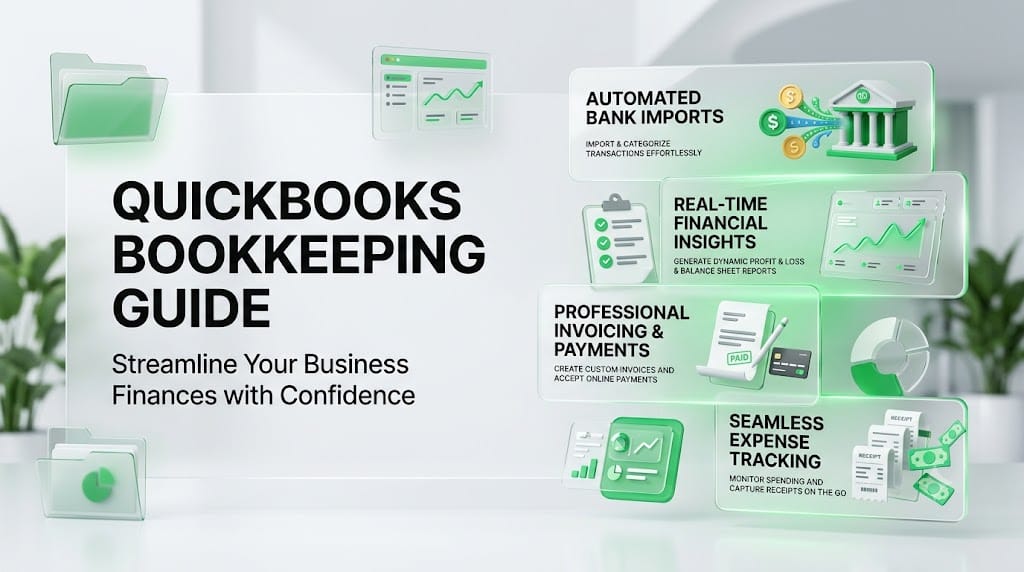
QuickBooks Bookkeeping Guide
Bookkeeping is one of the most important responsibilities for any business owner, but it doesn’t have to be complicated. Modern accounting software has transformed the way businesses manage their finances, and QuickBooks has remained one of the most trusted bookkeeping solutions for small businesses for many years. Whether you’re a freelancer, consultant, retailer, or growing company, QuickBooks helps automate financial tasks, reduce bookkeeping errors, and provide valuable insights into your business performance.
Instead of manually entering every transaction into spreadsheets, QuickBooks can automatically import bank transactions, generate invoices, track expenses, reconcile accounts, and produce professional financial reports. According to Intuit, QuickBooks is designed to simplify accounting by helping businesses manage income, expenses, payroll, and tax preparation from one centralized platform.
This comprehensive QuickBooks bookkeeping guide explains how to set up your account, organize your financial records, use essential bookkeeping features, and develop habits that keep your books accurate throughout the year.
What Is QuickBooks and Why Is It Popular?
QuickBooks is cloud-based accounting software developed to help businesses manage their finances efficiently. It combines bookkeeping, invoicing, expense tracking, reporting, and tax preparation into a single platform that can be accessed from almost anywhere.
One reason QuickBooks remains popular is its balance between simplicity and powerful functionality. Beginners can quickly learn basic bookkeeping tasks, while growing businesses can take advantage of advanced features such as inventory management, payroll, project profitability, budgeting, and customizable financial reports.
Another advantage is its large ecosystem. Thousands of accountants, bookkeepers, payroll providers, and third-party software applications integrate with QuickBooks. This makes collaboration much easier during tax season and allows businesses to expand their accounting capabilities without switching software.
Because QuickBooks automatically updates financial data in real time, business owners always have access to current information when making important decisions. Instead of relying on outdated spreadsheets, they can review accurate reports whenever needed.
Benefits of Using QuickBooks for Bookkeeping
Key Features for Small Businesses
QuickBooks includes numerous features designed to simplify bookkeeping while improving financial accuracy.
Some of its most valuable features include:
- Automatic bank transaction imports
- Expense tracking
- Invoice creation
- Online payment processing
- Bill management
- Financial reporting
- Receipt capture
- Sales tax tracking
- Payroll integration
- Mobile bookkeeping
These automation features reduce repetitive manual work and allow business owners to focus more on running their companies instead of maintaining spreadsheets.
Who Should Use QuickBooks?
QuickBooks works well for many different types of businesses, including:
- Freelancers
- Consultants
- Contractors
- Retail stores
- Online businesses
- Service companies
- Small manufacturers
- Professional firms
- Growing startups
Whether you process only a few transactions each week or hundreds each day, QuickBooks provides scalable bookkeeping tools that can adapt as your business grows.
Step 1: Set Up Your QuickBooks Account
The first step is creating your QuickBooks account and entering your basic business information. During setup, you’ll provide details such as your business name, address, industry, tax information, and accounting preferences.
Take your time during this process because these settings affect future financial reports. Choosing the correct fiscal year, tax settings, and accounting method helps ensure your bookkeeping remains accurate from the beginning.
You’ll also have the opportunity to customize invoices, payment terms, user permissions, and company preferences. Although these settings can be changed later, configuring them properly during setup saves time and reduces future adjustments.
After setup, explore the dashboard before entering transactions. Familiarizing yourself with navigation menus, reports, invoices, expenses, and banking sections makes everyday bookkeeping much easier.
Step 2: Connect Your Business Bank Accounts
One of QuickBooks’ most valuable features is automatic bank synchronization. Instead of manually entering every transaction, you can securely connect your business checking account, savings account, and business credit cards.
Once connected, QuickBooks automatically imports transactions, allowing you to review and categorize them rather than entering everything manually. This dramatically reduces bookkeeping time while improving accuracy.
Automatic bank feeds also make reconciliation much easier because imported transactions can be matched directly with your bookkeeping records.
Even with automation, review every imported transaction carefully. Occasionally transactions require different expense categories or additional notes to accurately reflect their business purpose.
Step 3: Customize Your Chart of Accounts
The chart of accounts forms the backbone of your bookkeeping system. It organizes every financial transaction into categories such as income, expenses, assets, liabilities, and equity.
A well-designed chart of accounts produces cleaner financial reports and simplifies tax preparation.
Understanding Account Categories
Typical categories include:
| Category | Examples |
|---|---|
| Income | Product Sales, Service Revenue |
| Assets | Bank Accounts, Equipment, Inventory |
| Liabilities | Loans, Credit Cards |
| Equity | Owner Investment |
| Expenses | Rent, Utilities, Advertising, Payroll |
Avoid creating too many categories unnecessarily. A simple, organized chart of accounts makes reports easier to understand while still providing meaningful financial information.
Step 4: Record Income and Expenses
Recording transactions accurately is one of the most important bookkeeping responsibilities. Every customer payment, supplier invoice, expense reimbursement, and operating cost should be entered promptly.
QuickBooks simplifies this process by automatically importing bank transactions while allowing users to assign categories with just a few clicks. Rules can also be created so recurring expenses—such as rent or internet bills—are categorized automatically.
Keeping records current provides a real-time view of your company’s financial health and reduces stress during month-end reviews and tax preparation.
Step 5: Create and Send Professional Invoices
QuickBooks allows businesses to create professional invoices within minutes. You can customize invoice templates using your company logo, colors, payment terms, and contact information.
Invoices can be emailed directly to customers, who often have the option to pay online using integrated payment services. Automatic payment reminders also help reduce overdue invoices and improve cash flow.
Consistent invoicing not only improves collections but also creates a professional experience for customers while keeping accounts receivable organized.
Step 6: Track Bills and Vendor Payments
Managing outgoing payments is just as important as tracking income. QuickBooks enables businesses to record supplier bills, monitor due dates, and schedule payments to avoid late fees.
Tracking bills also improves cash flow planning because you’ll know exactly what obligations are coming due each month. Vendor payment histories remain organized, making future purchasing decisions easier.
Keeping vendor accounts current also strengthens supplier relationships and helps maintain favorable payment terms.
Step 7: Reconcile Bank Accounts
Reconciling your bank accounts is one of the most critical bookkeeping tasks in QuickBooks. Reconciliation means comparing the transactions recorded in QuickBooks with your bank or credit card statements to ensure everything matches. This process helps identify missing transactions, duplicate entries, bank errors, or unauthorized charges before they become bigger financial problems.
QuickBooks makes reconciliation much easier than manual bookkeeping. After your bank transactions are imported, the software automatically matches many of them with existing records. You’ll only need to review unmatched transactions and verify that every deposit, payment, fee, and transfer has been recorded correctly.
It’s a good practice to reconcile your accounts at the end of every month when your bank statement becomes available. Businesses with a high number of daily transactions may benefit from weekly reconciliation to catch issues sooner. Regular reconciliation keeps your financial records accurate and gives you confidence that your reports reflect your actual bank balances.
When reconciliation is complete, QuickBooks generates a reconciliation report showing any remaining discrepancies. Save these reports for future reference, as they can be extremely helpful during audits or when investigating financial issues.
Step 8: Generate Financial Reports
One of QuickBooks’ greatest strengths is its powerful reporting system. Every transaction you record contributes to detailed reports that help you understand how your business is performing. Instead of guessing whether your company is profitable, you can rely on accurate financial data to make informed decisions.
The three reports every business owner should review regularly are:
| Report | Purpose | Business Benefit |
|---|---|---|
| Profit & Loss Statement | Shows income, expenses, and net profit | Measures profitability |
| Balance Sheet | Displays assets, liabilities, and owner’s equity | Shows financial position |
| Cash Flow Statement | Tracks money coming in and going out | Helps manage liquidity |
In addition to these core reports, QuickBooks offers accounts receivable aging reports, accounts payable summaries, sales reports, expense breakdowns, inventory reports, and tax summaries. These reports provide valuable insights into customer payments, spending habits, and overall business performance.
Schedule a monthly financial review using these reports. Comparing current results with previous months helps identify trends, control expenses, and plan for future growth. The more often you review your financial reports, the easier it becomes to make strategic business decisions.
Common QuickBooks Bookkeeping Mistakes
Although QuickBooks automates many bookkeeping tasks, mistakes can still happen if the software isn’t used correctly. Understanding these common errors can help you avoid unnecessary financial problems.
Some of the most frequent QuickBooks bookkeeping mistakes include:
- Mixing personal and business transactions.
- Ignoring imported bank transactions instead of reviewing them.
- Creating duplicate customer or vendor records.
- Using incorrect expense categories.
- Forgetting to reconcile bank accounts.
- Not backing up financial data or exporting reports.
- Delaying transaction entry until the end of the month.
- Failing to customize the chart of accounts.
- Ignoring overdue invoices.
- Not reviewing financial reports regularly.
Most of these issues are preventable through consistent bookkeeping habits and routine account reviews. Spending a few minutes each week maintaining your books can save hours of corrections later.
QuickBooks Tips for Faster Bookkeeping
QuickBooks includes several automation features that can significantly reduce bookkeeping time when used effectively.
Some practical tips include:
- Create recurring invoices for regular customers.
- Set up recurring bills for monthly expenses.
- Use bank rules to categorize transactions automatically.
- Capture receipts using the QuickBooks mobile app.
- Enable payment reminders for overdue invoices.
- Connect payment processors for faster collections.
- Customize financial dashboards for quick insights.
- Review uncategorized transactions every week.
- Archive old reports for historical comparison.
- Restrict user permissions to protect sensitive financial information.
These small improvements can streamline your bookkeeping workflow and improve overall financial accuracy.
Best Practices for Long-Term Success
QuickBooks works best when paired with consistent bookkeeping habits. Rather than viewing bookkeeping as a task reserved for month-end or tax season, make it part of your regular business routine. Daily or weekly bookkeeping sessions keep your financial records current and reduce the risk of forgotten transactions.
Develop a monthly checklist that includes importing bank transactions, categorizing expenses, reconciling accounts, reviewing outstanding invoices, paying vendor bills, and generating financial reports. Following the same process every month builds consistency and improves accuracy.
Another valuable practice is maintaining organized supporting documents. Upload receipts, invoices, contracts, and payment confirmations directly into QuickBooks whenever possible. This creates a complete audit trail that simplifies tax preparation and financial reviews.
Business owners should also review user access periodically. Limit administrative permissions to authorized individuals and enable multi-factor authentication to strengthen account security. As your business grows, protecting financial information becomes increasingly important.
Finally, work with a professional accountant at least once a year. Even if you manage daily bookkeeping yourself, an accountant can review your records, identify tax-saving opportunities, ensure compliance with accounting standards, and provide strategic financial advice.
QuickBooks vs. Manual Bookkeeping
| Feature | QuickBooks | Manual Bookkeeping |
|---|---|---|
| Bank Transaction Import | Automatic | Manual Entry |
| Expense Tracking | Automated | Manual |
| Invoice Creation | Built-in Templates | Manual Documents |
| Financial Reports | Instant | Time-Consuming |
| Bank Reconciliation | Guided Process | Manual Comparison |
| Receipt Storage | Digital Upload | Paper Filing |
| Cloud Access | Yes | No |
| Data Backup | Automatic (Cloud Plans) | Manual |
| Collaboration | Multi-User Access | Limited |
| Time Required | Low | High |
This comparison highlights why many small businesses transition from spreadsheets or paper records to accounting software as their operations grow.
Conclusion
QuickBooks has earned its reputation as one of the leading bookkeeping solutions for small businesses by combining ease of use with powerful accounting features. From automating bank transaction imports to generating detailed financial reports, it simplifies many of the time-consuming tasks associated with traditional bookkeeping.
Success with QuickBooks doesn’t depend solely on the software—it also depends on developing good bookkeeping habits. Recording transactions regularly, reconciling accounts every month, organizing receipts, reviewing financial reports, and monitoring cash flow all contribute to accurate financial records and better business decisions.
Whether you’re just starting your business or upgrading from manual bookkeeping, QuickBooks provides the tools needed to stay organized and maintain financial control. As your company grows, its scalable features can continue supporting your bookkeeping needs without requiring a complete change in accounting systems.
By investing time in learning QuickBooks and following the best practices outlined in this guide, you’ll build a stronger financial foundation that supports long-term business success.
Frequently Asked Questions (FAQs)
1. Is QuickBooks suitable for beginners?
Yes. QuickBooks is designed with an intuitive interface that makes it accessible for beginners while still offering advanced features for experienced users.
2. How often should I reconcile my bank accounts in QuickBooks?
Most businesses should reconcile their accounts once a month. Companies with a high volume of transactions may prefer weekly reconciliations.
3. Can QuickBooks automatically import bank transactions?
Yes. QuickBooks can securely connect to many financial institutions and automatically import bank and credit card transactions for review and categorization.
4. Does QuickBooks help with tax preparation?
Yes. QuickBooks organizes financial records, tracks income and expenses, and generates reports that simplify tax preparation and collaboration with accountants.
5. Can multiple users access the same QuickBooks account?
Yes. Many QuickBooks plans support multiple users with customizable permission levels, making collaboration easier for business owners, employees, and accountants.